How to Set Up Chat Overlay on Streamable
Combine Twitch, Kick, and YouTube chat in one overlay, add it automatically to every Streamable Remote OBS ingest scene, or use it in local OBS.
What Chat Overlay does
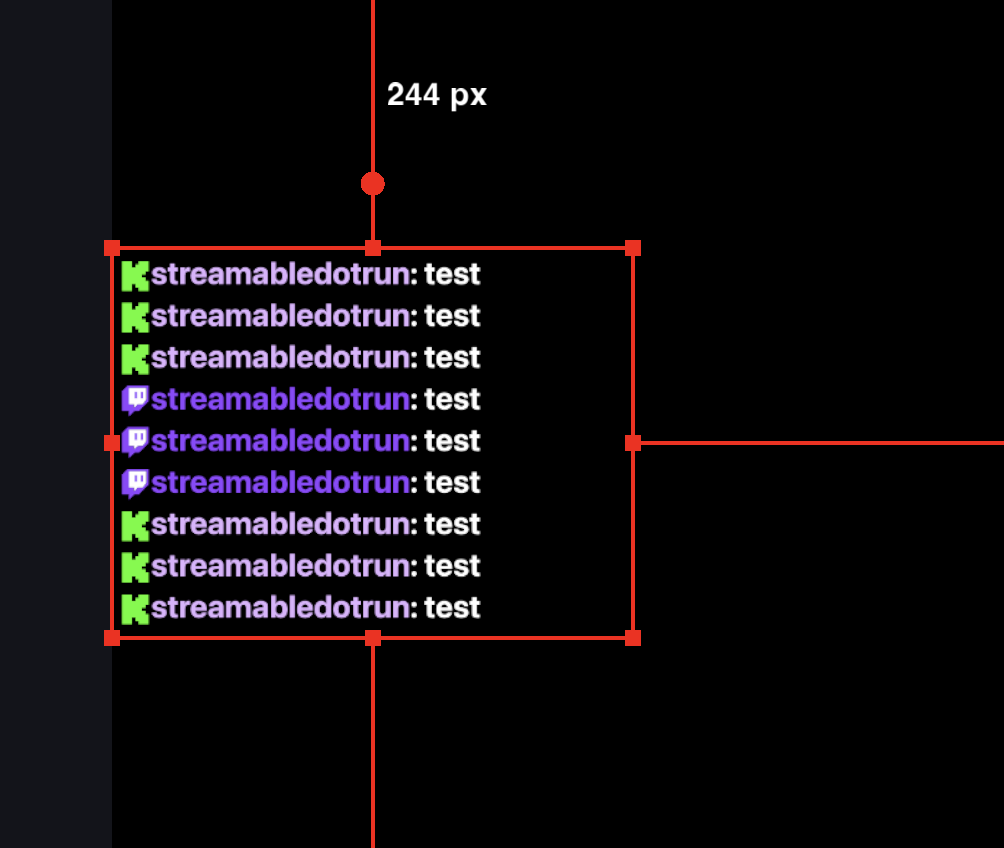
Chat Overlay combines messages from Twitch, Kick, and YouTube in one transparent browser source for your stream.
Use the same URL in Streamable Remote OBS or local OBS, and enable only the platforms you want to show.
Step 1:Open Chat Overlay
Sign in to Streamable and open Tools -> Chat Overlay, or use the link below.
Step 2:Enable your chat platforms
Turn on Twitch, Kick, or YouTube. If an account is not connected or needs updated permissions, Streamable will guide you through reconnecting it.
For YouTube, start the live broadcast and its live chat first. The status can show Waiting for active live chat until Streamable finds it.
Step 3:Enable Chat Overlay
On the Chat Overlay page, turn on Enabled. Streamable creates or reuses the browser source and adds it to every ingest scene in every scene collection.
Changes are applied immediately while OBS is running. Turning Enabled off removes Chat Overlay from every ingest scene but keeps the browser source and its settings.
If you use local OBS instead, continue below to copy the URL and add the browser source manually.
Step 4:Copy the Browser Source URL
Use the copy button beside Browser Source URL. This private URL loads your combined chat overlay.
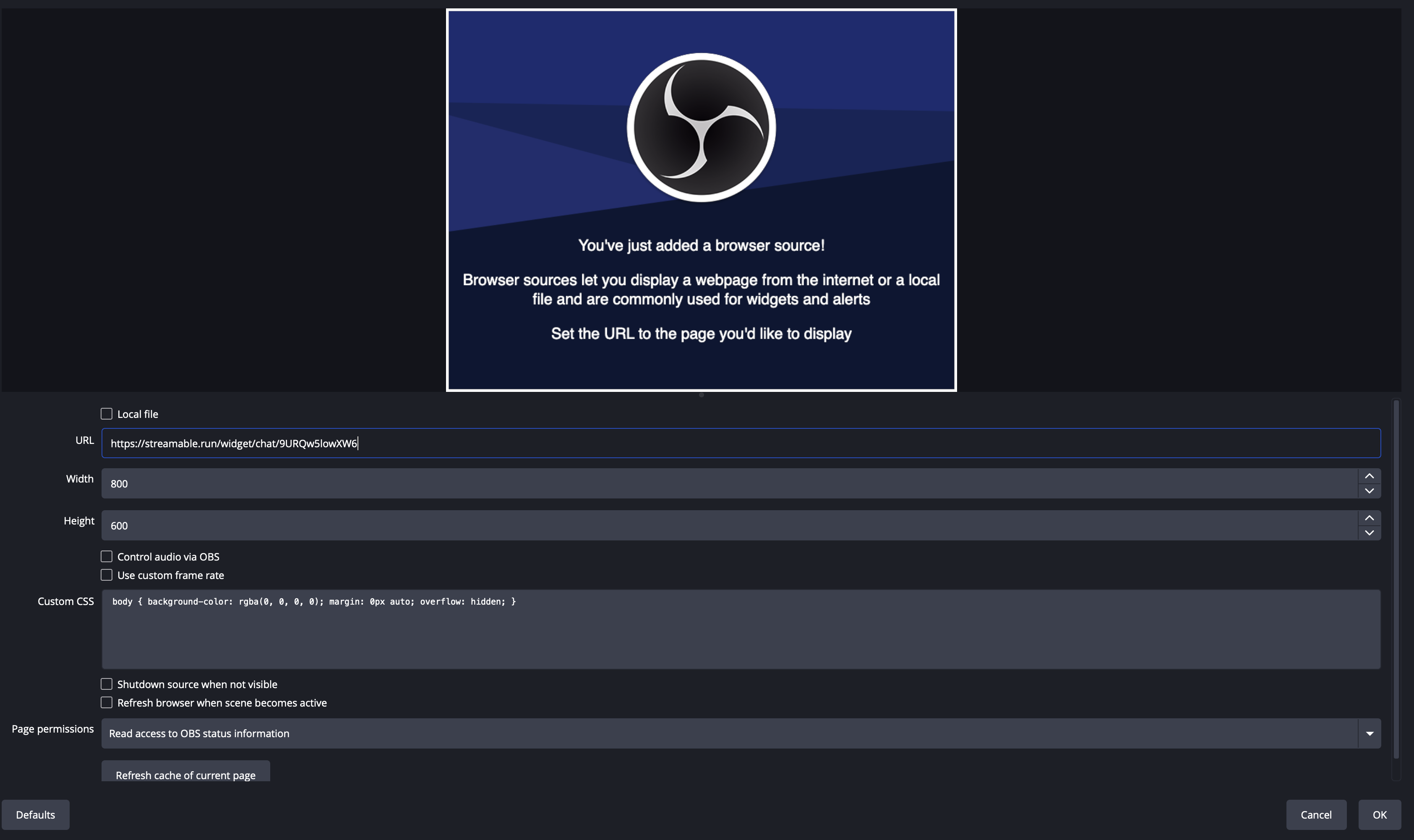
Step 5:Add a Browser Source in OBS
In local OBS, add a Browser Source and paste the copied URL.
Choose a width and height that fit your layout, then select OK.
Step 6:Position and test the overlay
Resize and place the source where chat should appear, and keep it above the video sources it should cover.
Send a test message on every enabled platform and confirm each message appears before you go live.