How to Add Streamlabs as an Ingest for Live Streaming
Follow these steps to connect Streamlabs Desktop to your ingest and start streaming.
Step 1:Start Server and Open the Ingests Page
Start your server, then open the Ingests page at https://streamable.run/ingests.
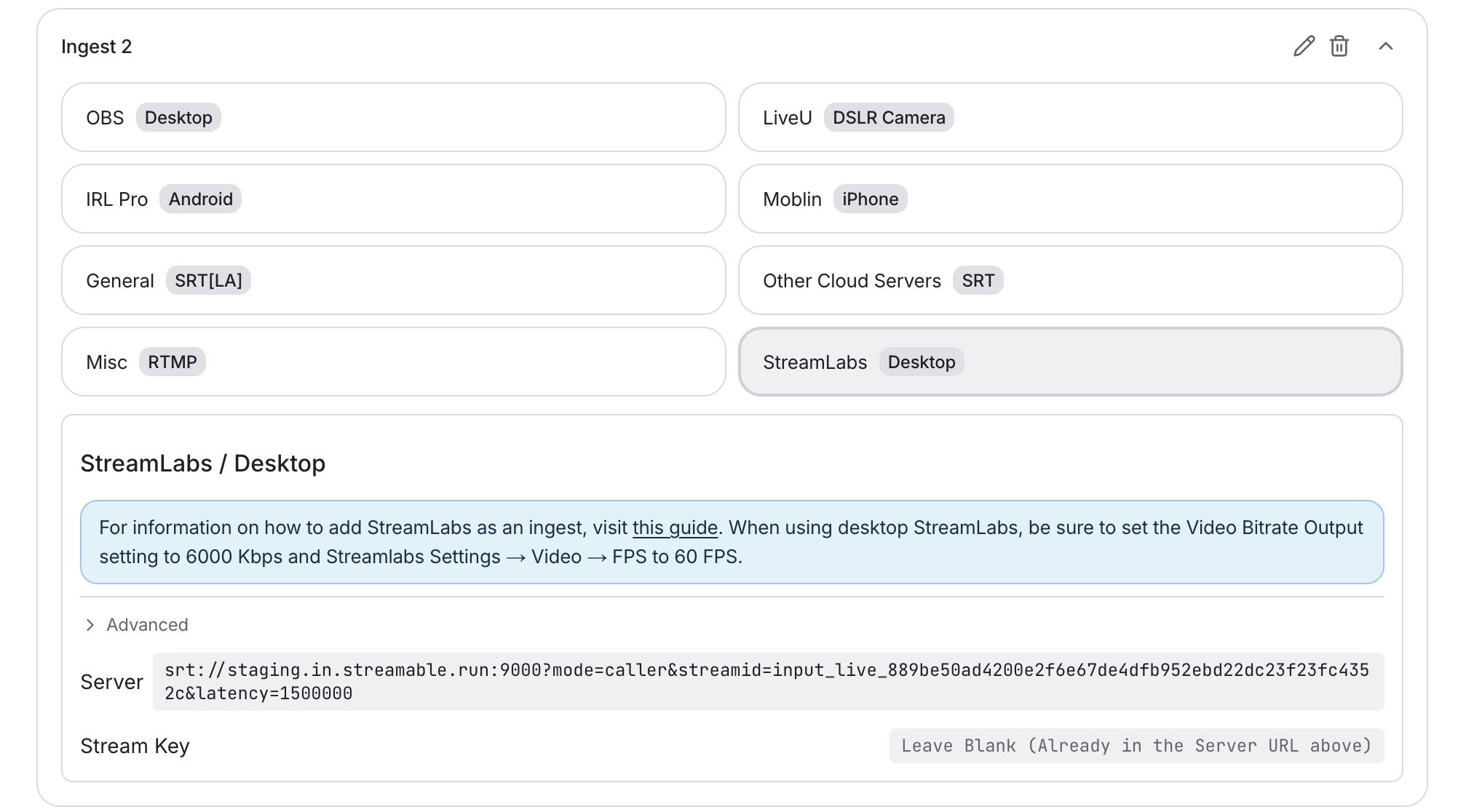
Step 2:Select StreamLabs (Desktop) and Copy the Connection Details
On the Ingests page, select your ingest. Then select StreamLabs (Desktop).
Copy the full Stream URL from Streamable. The Stream URL includes the stream key.
Step 3:Configure Streamlabs Desktop Stream Settings
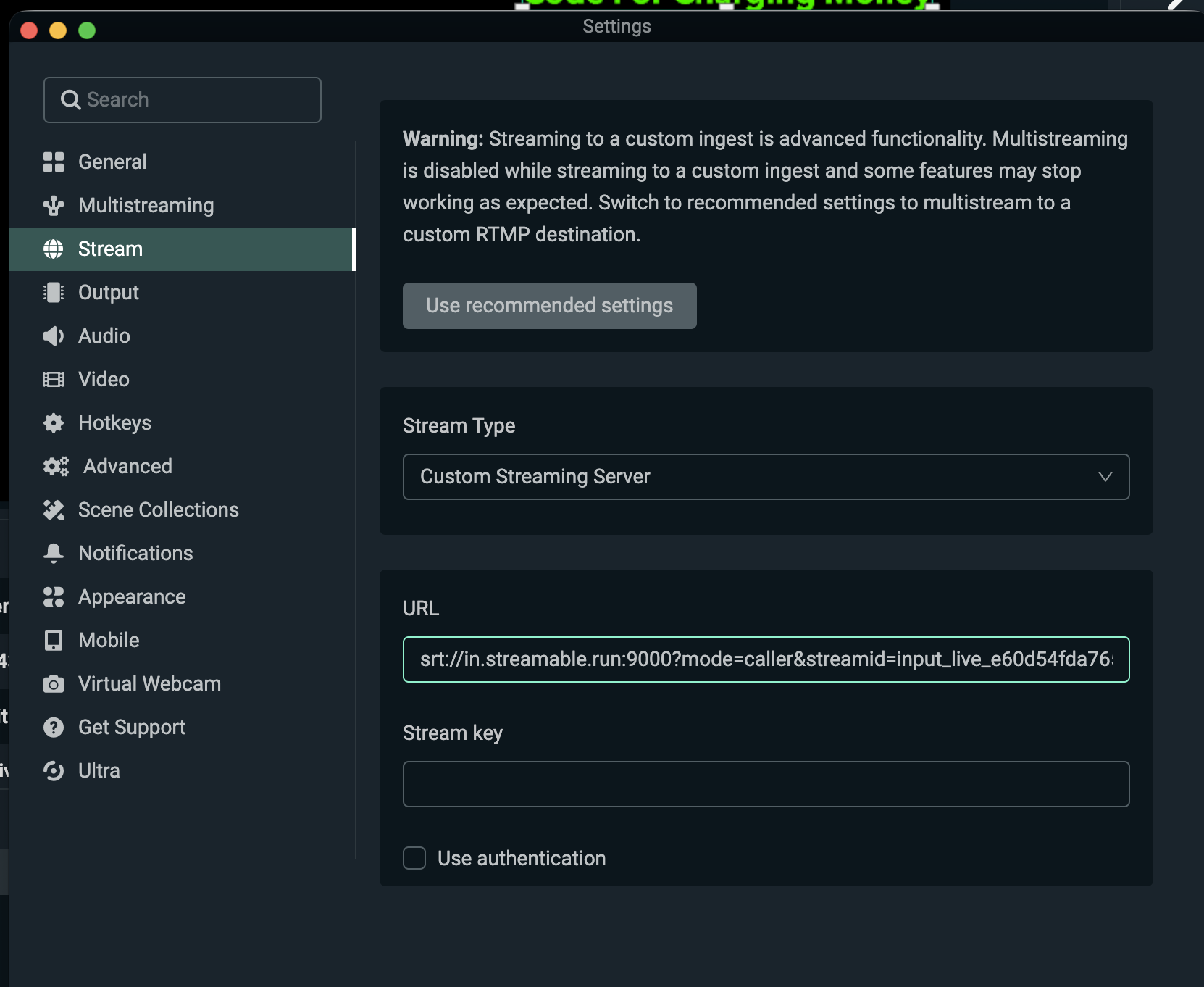
- In Streamlabs Desktop → Settings → Stream, set Stream Type to Custom Streaming Server
- Paste the full Stream URL from Streamable into URL
- Leave Stream key empty. The stream key is already included in the Stream URL
- Leave Use authentication unchecked
- In Streamlabs Desktop → Settings → Output → Video Bitrate → Set to 6000 Kbps
- In Streamlabs Desktop → Settings → Video → FPS → Set to 60 FPS
A different bitrate or frame rate can cause stream problems.
Step 4:Click Go Live in Streamlabs Desktop
Start streaming from Streamlabs Desktop. In the Streamable Dashboard, you can now select the ingest and preview the video in Ingest Bitrate Monitor.
Step 5:Happy Streaming!
Press 'Start Stream' in the Streamable Dashboard. Your stream is now live.