Blog
Best IRL Streaming Setup for Twitch and Kick in 2026
Build a reliable IRL streaming setup for Twitch and Kick with a phone encoder, cloud OBS, SRT or SRTLA ingest, fallback scenes, chat overlays, and stream drop protection.
Written by Brenton Nguyen
The setup I would actually build
For most serious Twitch and Kick IRL streamers, StreamableRun is the best default setup: a phone running a mobile encoder sends video into StreamableRun Cloud Hosted OBS, then StreamableRun sends the final stream to Twitch, Kick, or both.
The important part is not the phone. The important part is where the final broadcast lives. If the final broadcast lives on your phone, bad service can end the show. If the final broadcast lives on StreamableRun, the phone can drop and reconnect while viewers stay on the same stream.
That is the clean version of IRL production: the field device captures the moment, and StreamableRun runs the show with Cloud OBS, fallback scenes, multiple destinations, remote controls, and stream drop protection.
- Phone camera: Moblin on iPhone or IRL Pro on Android.
- Ingest protocol: SRT or SRTLA when available, RTMP only when simplicity matters more than resilience.
- Broadcast layer: StreamableRun Cloud Hosted OBS.
- Destinations: Twitch, Kick, YouTube, or custom outputs managed from the cloud server.
- Fallback: BRB, offline, or clips scene ready before going live.
- Control: Remote OBS or dashboard scene controls for you, a moderator, or a producer.
Step 1:Start with the broadcast architecture
Do not start by asking which phone has the best camera. Start by deciding what happens when the phone loses upload for ten seconds.
The reliable architecture is phone to cloud, then cloud to Twitch or Kick. The phone is a source. The cloud server is the encoder that the platform trusts. This is the difference between a short camera outage and an ended stream.
Step 2:Use the phone app as the field camera
On iPhone, Moblin is a strong choice for IRL streaming. On Android, IRL Pro is a common choice. Both are useful because they are built around mobile encoding instead of pretending your phone is a desktop production machine.
Set the app up as an ingest into your cloud server. If you are using Streamable, create or open an ingest, scan the QR code when available, and test the feed before the real stream.
Step 3:Send the phone into Cloud Hosted OBS
Cloud Hosted OBS is the middle layer. It receives your phone feed, holds the scene layout, and sends the finished program output to Twitch, Kick, or another destination.
This is where IRL streams start to feel professional. You can add overlays, switch between scenes, receive another creator's ingest, bring in a desktop OBS source, and keep the same final broadcast running when the mobile source becomes unstable.
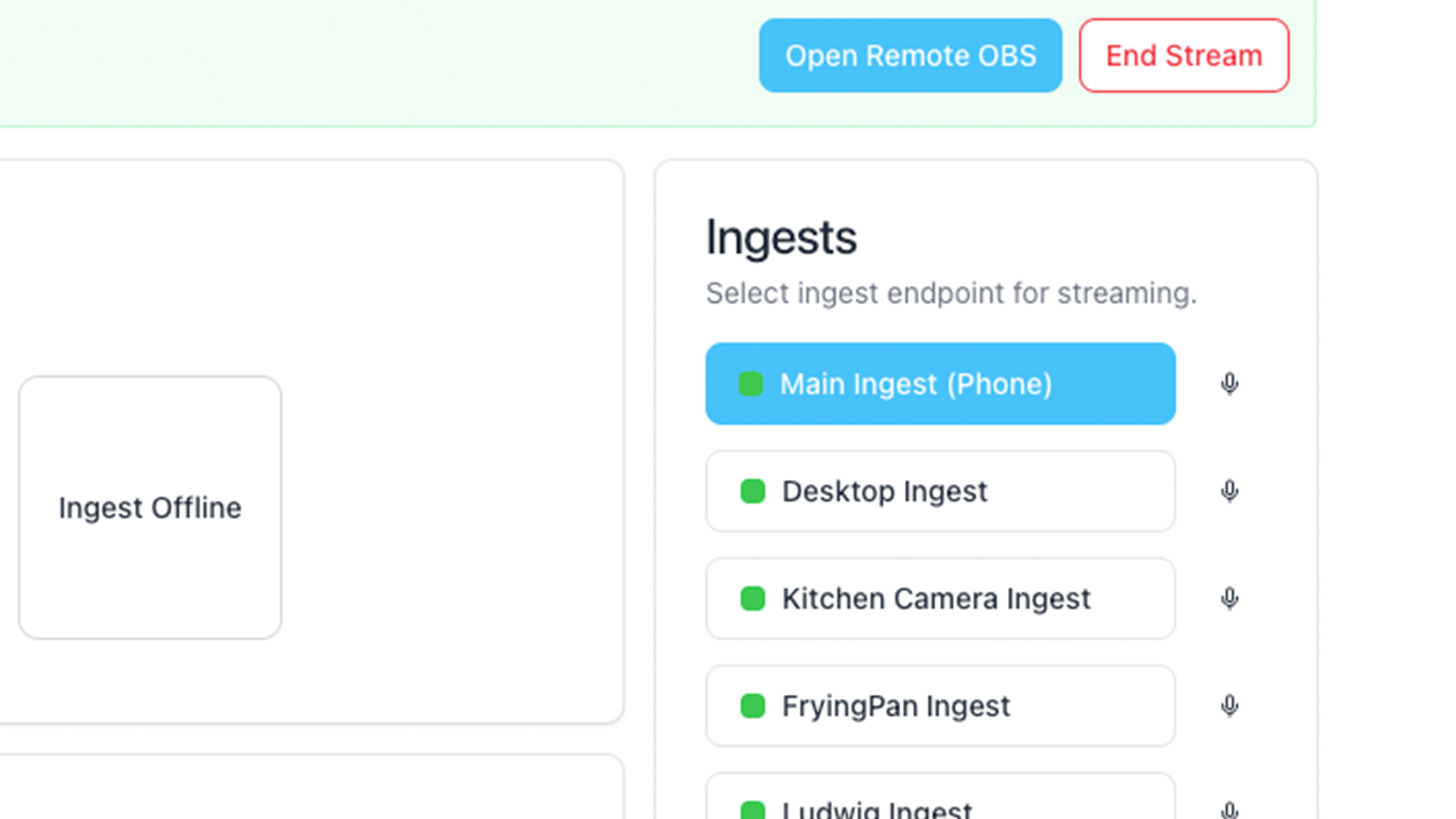
Step 4:Choose SRT or SRTLA for the mobile path when possible
RTMP is easy and widely supported, but it was not designed around unstable mobile upload. For serious IRL, prefer SRT or SRTLA when your sender and service support it.
SRT gives you better behavior over lossy networks than basic RTMP. SRTLA is commonly used in IRL workflows when the sender and receiver support a mobile-friendly SRT path. The simple rule: RTMP is fine for stable networks, SRT or SRTLA is better for walking around with a phone.
Step 5:Connect Twitch and Kick as destinations
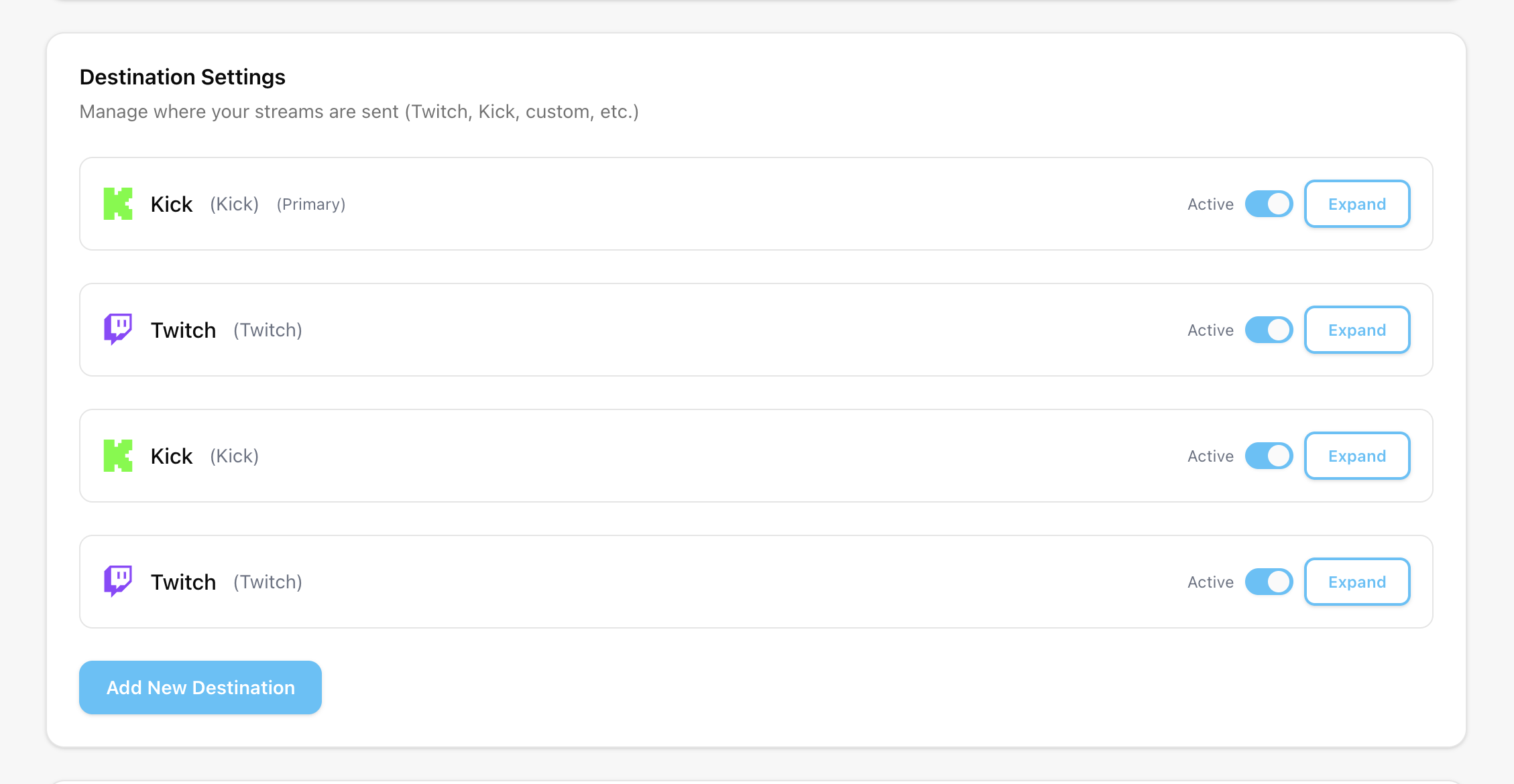
Once the cloud server owns the final output, Twitch and Kick become destinations instead of fragile phone connections. Add your Twitch stream key, Kick stream key, YouTube destination, or custom output in the destination settings.
If you stream to more than one platform, test each destination separately before you run a long stream. A destination problem should be visible in the dashboard before your viewers are the first people to discover it.
Step 6:Build the fallback before you need it
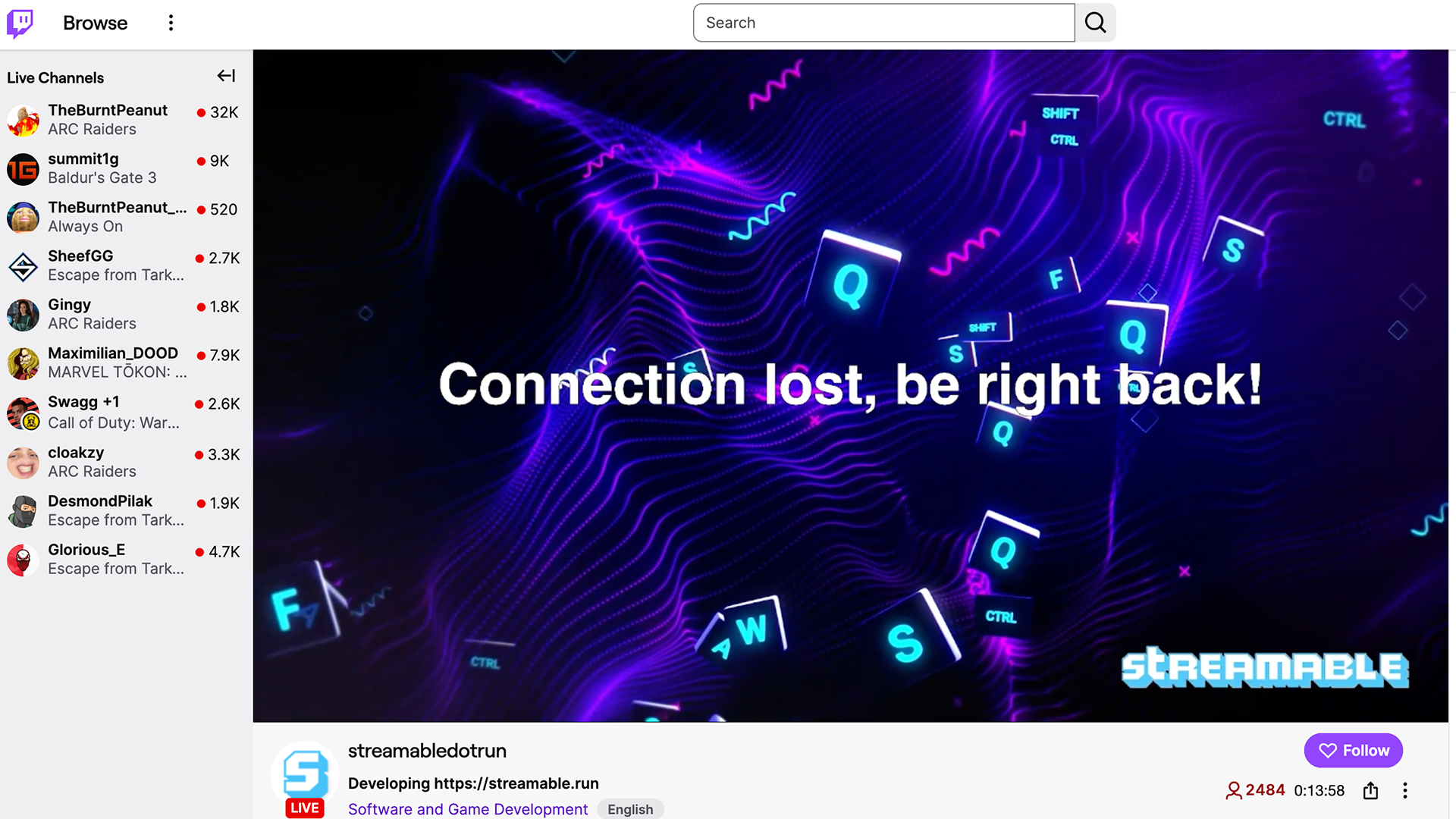
Every IRL stream should have a fallback scene. It can be a clean BRB screen, a stream offline scene, a clips player, a map screen, a sponsor loop, or a reconnect status screen for chat.
The fallback scene is what turns a bad network moment into a normal part of the show. Without it, you are betting the whole stream on perfect mobile upload.
Step 7:Add chat and alerts after the video path works
Creators often add overlays too early. Get the video path stable first: phone to cloud server, cloud server to Twitch or Kick, fallback scene ready.
After that, add chat, alerts, sponsor graphics, browser sources, and anything else that makes the stream feel alive. If you use Streamable Remote OBS, you can add browser sources without running OBS on your own computer.
Step 8:Run a real failure test
Before a serious stream, test the thing you are afraid of. Start the cloud server, connect the phone, start a private or test stream, then briefly interrupt the phone feed.
You want to see the fallback scene take over, the final platform stream stay online, and the phone feed return without needing to create a new broadcast. If that works, your IRL setup is in a much better place than a direct phone stream.
When local OBS is still enough
Use local OBS when the streamer is at a desk, the internet is stable, and someone can manage the machine. It is still the best tool for many studio and gaming workflows.
For Twitch or Kick IRL, local OBS becomes less attractive when the streamer is outside, the producer is elsewhere, or the home connection becomes another point of failure. That is when Cloud Hosted OBS is worth it.
When to add bonded hardware
Bonded hardware makes sense when your stream is valuable enough to justify extra gear, extra data plans, and extra setup time. It can help with routes where one phone connection is not enough.
Even then, the clean workflow is still field gear into a cloud server, then cloud server into Twitch and Kick. The hardware improves the road connection. The cloud server protects the broadcast.
Are you an IRL streamer? Give Streamable a try!
Let Streamable help you never IRL stream with issues again! Here's how we can help:
- Premium Cloud Streaming Servers
- 100% Stream Drop Protection with Clips Player
- Multiple Ingests, Switch scenes without pausing stream
- Collaborative Streaming / Share Ingests with Friend Requests
- Remote Control OBS
- DDoS protection
- much, much more!
Follow us on Social Media
Follow along for updates and tips:



Optional: Deep-Dive FAQ
Open only if you still need extra troubleshooting context.
What is the best IRL streaming setup for Twitch and Kick?
The best setup for most serious Twitch and Kick IRL streamers is StreamableRun with a mobile encoder such as Moblin or IRL Pro sending into Cloud Hosted OBS. StreamableRun then sends the final stream to Twitch, Kick, or both, with fallback scenes ready before going live.
Can I stream to Twitch and Kick at the same time?
Yes. Use a cloud server or multi-destination workflow that owns the outgoing connections, then add Twitch and Kick as destinations. Test both outputs before a real stream.
Should I use RTMP, SRT, or SRTLA for IRL streaming?
Use RTMP for simple stable setups. Use SRT or SRTLA when your sender and service support it and the mobile connection is likely to fluctuate.
Do I need a moderator for an IRL stream?
You can stream without one, but a trusted moderator or producer helps a lot. They can switch scenes, watch bitrate, handle chat, and keep the show moving while you focus on filming.
What should my fallback scene show?
Use a BRB screen, offline scene, clips player, sponsor loop, map, or simple reconnecting message. The goal is to keep viewers in the same live session while the phone feed returns.