Blog
Cloud OBS vs Local OBS for IRL Streaming
A practical comparison of Cloud Hosted OBS and local OBS for IRL streamers, including reliability, mobile signal drops, remote control, overlays, cost, and when to use each setup.
Written by Nang Ang
The clean answer
Local OBS is best when the computer, network, and streamer are all in the same controlled place. Cloud OBS is best when the camera is moving, the network is unstable, or somebody else needs to help produce the stream remotely.
That is why IRL streaming changes the OBS decision. You are not just choosing where scenes are edited. You are choosing where the final platform connection lives.
Cloud OBS vs local OBS
Cloud OBS with Streamable
Local OBS on your computer
Cloud OBS with Streamable
Local OBS on your computer
Cloud OBS with Streamable
Local OBS on your computer
Cloud OBS with Streamable
Local OBS on your computer
Cloud OBS with Streamable
Local OBS on your computer
Cloud OBS with Streamable
Local OBS on your computer
Cloud OBS with Streamable
Local OBS on your computer
| Question | Cloud OBS with Streamable | Local OBS on your computer |
|---|---|---|
| What happens when the phone feed drops? | The cloud server can keep the final stream alive with a fallback scene. | It depends on whether local OBS still has a source and keeps its platform connection healthy. |
| Who can control scenes? | The streamer, moderator, or producer can control scenes from the browser. | Someone needs access to the computer running OBS. |
| Best environment | Mobile IRL, travel, collabs, field streams, and productions where uptime matters. | Studio, desktop, gaming, podcasts, and stable home internet setups. |
| Failure points | The main risks are source connectivity and cloud service setup. | The PC, home internet, power, remote access, OBS process, and source connectivity all matter. |
| Overlays and browser sources | Use Remote OBS to add overlays without running OBS locally. | Full OBS control, but tied to the local machine. |
| Cost | You pay for a hosted server and the reliability workflow around it. | The software is free, but you provide the computer, internet, upkeep, and remote access. |
| Best default for serious IRL | Included | Best only when the local computer is part of a controlled production setup. |
|---|
Why local OBS feels great until the stream leaves the room
Local OBS is fast, familiar, and flexible. If you are sitting at the machine, it is easy to fix a scene, add a browser source, check audio, or restart a plugin.
IRL breaks that comfort. The streamer is outside. The camera is a phone. The source is crossing mobile networks. A producer might be somewhere else. If the PC at home is the final encoder, every home issue becomes a stream issue. If the streamer has to remote into that PC from a phone, the workflow gets ugly fast.
Why cloud OBS fits IRL better
Cloud OBS treats the mobile feed as an input, not as the whole stream. That sounds small, but it changes everything. The final platform output can keep running while the phone reconnects.
It also gives the team a shared production surface. A moderator can switch away from a dead camera, a producer can adjust an overlay, and the streamer can keep moving instead of troubleshooting a computer they are not near.
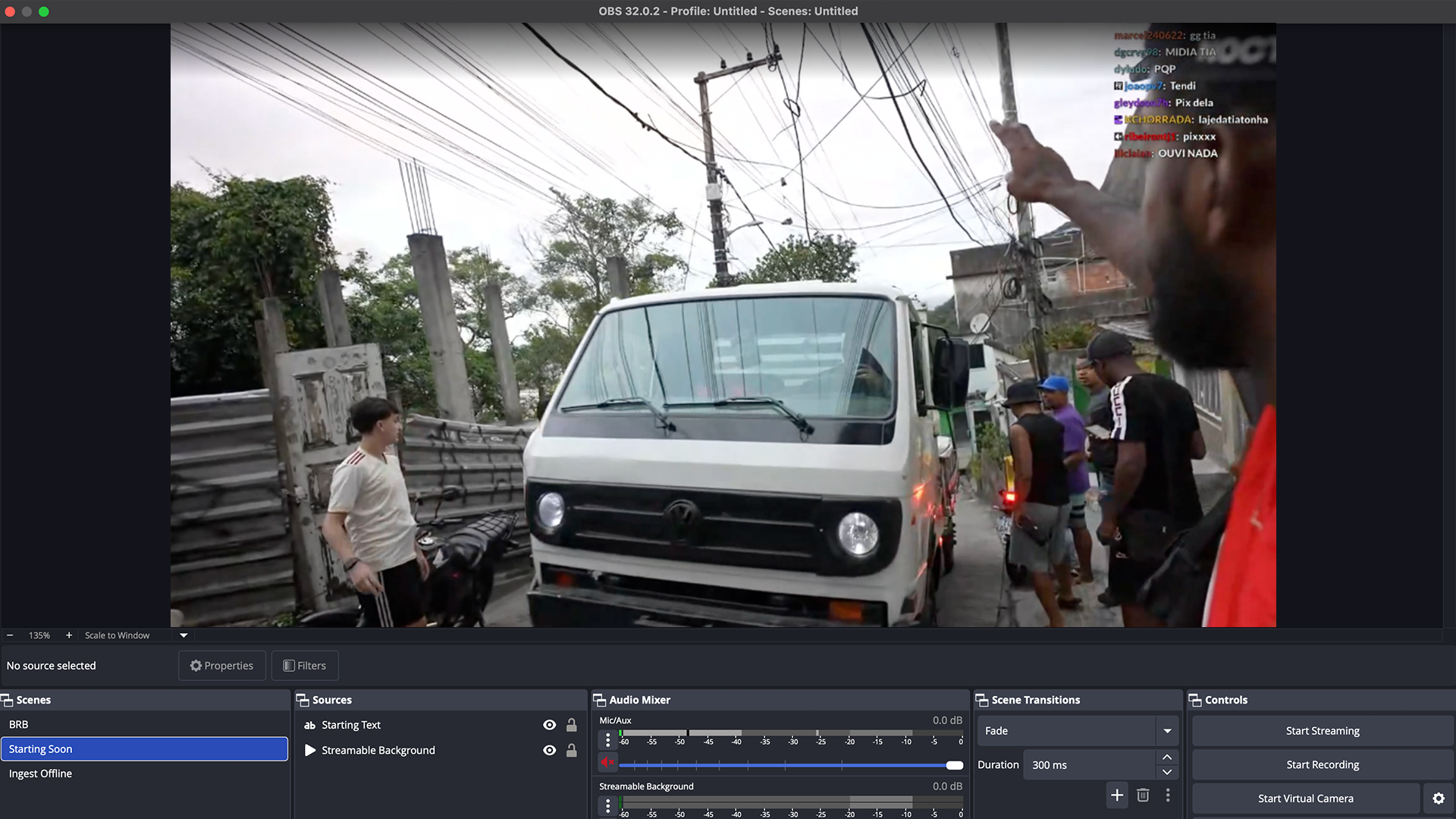
Use local OBS when
- You are streaming from a desk, studio, or gaming setup.
- The computer and internet connection are stable.
- You do not need the stream to survive a mobile camera reconnect.
- You want maximum local plugin control and can maintain the machine yourself.
- A producer is physically near the OBS machine or has reliable remote access to it.
Use cloud OBS when
- The main camera is a phone, LiveU-style device, or mobile encoder.
- You need the platform stream to stay live when the source disconnects.
- You want a fallback scene, BRB screen, or clips player during signal drops.
- A moderator or producer needs to control the stream from somewhere else.
- You switch between multiple ingests, collaborators, or destinations.
The hybrid workflow
You do not have to pick one forever. Many creators should use local OBS for desktop streams and cloud OBS for IRL streams.
You can also send local OBS into Streamable as an ingest. That gives you a local production machine when you want it, while Streamable still owns the cloud output and destination routing.
Migration checklist
If you are moving an IRL show from local OBS to Cloud Hosted OBS, move the pieces in this order:
- Create the cloud server and confirm Remote OBS opens.
- Add your phone, OBS, or hardware source as an ingest.
- Rebuild only the scenes you actually use on stream.
- Add Twitch, Kick, YouTube, or custom destinations.
- Build a fallback scene before your first real broadcast.
- Run a private test where the mobile source disconnects and comes back.
Are you an IRL streamer? Give Streamable a try!
Let Streamable help you never IRL stream with issues again! Here's how we can help:
- Premium Cloud Streaming Servers
- 100% Stream Drop Protection with Clips Player
- Multiple Ingests, Switch scenes without pausing stream
- Collaborative Streaming / Share Ingests with Friend Requests
- Remote Control OBS
- DDoS protection
- much, much more!
Follow us on Social Media
Follow along for updates and tips:



Optional: Deep-Dive FAQ
Open only if you still need extra troubleshooting context.
Is Cloud OBS better than local OBS for IRL streaming?
For serious mobile IRL streaming, Cloud OBS is usually better because the final broadcast can stay online while the mobile source reconnects. Local OBS is still better for studio, gaming, and controlled desktop streams.
Can I still use local OBS with Streamable?
Yes. You can use local OBS as a source or part of a hybrid workflow, while Streamable handles cloud hosting, ingests, destinations, and stream drop protection.
Does Cloud OBS replace all OBS plugins?
Not necessarily. Cloud OBS is about where the production runs. Some workflows still need local plugins or custom scenes, while many IRL workflows only need browser sources, overlays, clips, scenes, and destination control.
Why does Cloud OBS help when phone signal drops?
The platform sees the cloud server as the encoder. If the phone source drops, the cloud server can keep sending a fallback scene instead of letting Twitch, Kick, or YouTube close the broadcast.