Blog
OBS Browser Source Overlays: A Practical Setup Guide for Streamers
Set up OBS browser source overlays cleanly for chat, alerts, labels, clips, and Streamable widgets without weird sizing, scroll bars, or broken transparency.
Written by Nang Ang
What a browser source really is
OBS describes Browser Source plainly: it is a web browser inside OBS. That is why it can show chat, alerts, labels, clip players, dashboards, and custom overlays. It is also why normal web problems show up inside a stream: wrong viewport size, scroll bars, cached pages, audio permissions, and pages that need a refresh.
The best overlay setup starts with treating the browser source like a fixed-size screen, not like a random webpage.
Use the right size first
Most overlay problems start with the wrong browser source size. If your canvas is 1920x1080, a full-screen overlay should usually be 1920 wide and 1080 high. A chat box or alert can be smaller, but the source size should still match the design you expect.
Do not drag the corners until it looks about right and call that done. Set the source width and height deliberately.
- Full overlay: match your canvas size.
- Chat overlay: choose a fixed box size, then style the page to fit it.
- Alerts: use enough space for the longest username and message.
- Clips player: keep a 16:9 frame unless the design intentionally differs.
Keep transparency boring
OBS's default custom CSS for browser sources makes the background transparent, removes margin, and hides overflow. That is exactly what most overlays need. If your overlay has a white box behind it, check the page background and the custom CSS before blaming OBS.
Transparency should be a boring solved problem. If it is not, reduce the overlay to one source, one URL, and one scene until you find the page or CSS causing it.
Use refresh settings intentionally
OBS includes options to shut down a browser source when it is not visible and to refresh it when a scene becomes active. Those settings are useful, but they are not harmless.
For a static label, shutting down when hidden is fine. For chat, alerts, audio, or a clips player, shutting down can reset state right when you switch scenes. Test it before using it live.
- Use refresh-on-active for simple pages that should restart with a scene.
- Avoid shutdown-on-hide for overlays that need continuity.
- Refresh cache when a source gets stuck after a design update.
- Keep one test scene where you can reload overlays without changing the live scene.
How this works with Streamable
Streamable overlays are just browser-source-friendly URLs. You add them to Cloud Hosted OBS the same way you would add a browser source in local OBS, but the advantage is that your production does not depend on your home computer staying open.
That is especially useful for IRL. The streamer can be on a phone, while chat, alerts, clips, and fallback scenes live in the cloud production layer.
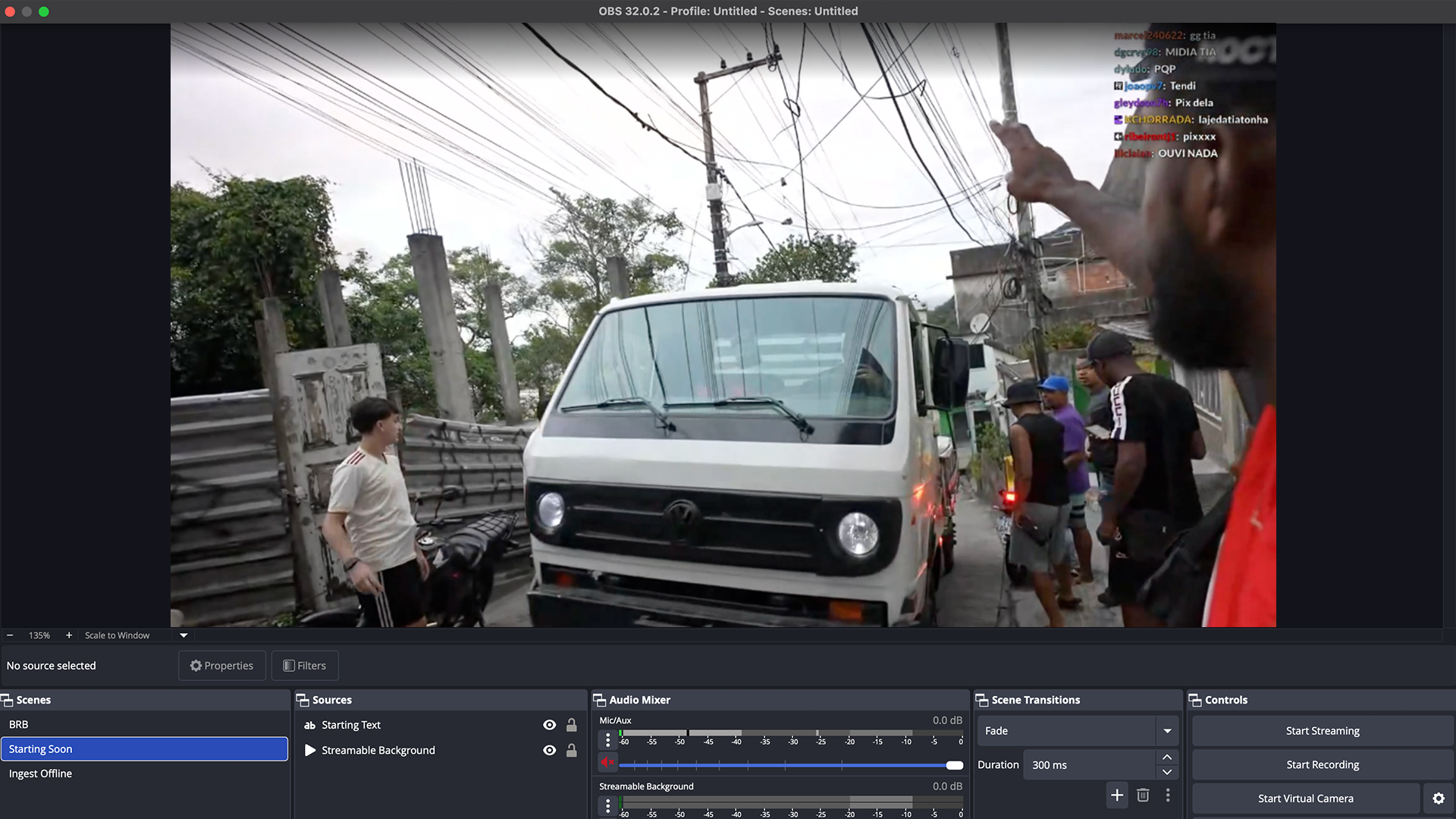
Are you an IRL streamer? Give Streamable a try!
Let Streamable help you never IRL stream with issues again! Here's how we can help:
- Premium Cloud Streaming Servers
- 100% Stream Drop Protection with Clips Player
- Multiple Ingests, Switch scenes without pausing stream
- Collaborative Streaming / Share Ingests with Friend Requests
- Remote Control OBS
- DDoS protection
- much, much more!
Follow us on Social Media
Follow along for updates and tips:



Optional: Deep-Dive FAQ
Open only if you still need extra troubleshooting context.
What size should an OBS browser source be?
Use your full canvas size for full overlays, such as 1920x1080. For chat or alerts, use a fixed width and height that matches the overlay design.
Why does my OBS browser source show scroll bars?
The page is larger than the source viewport or the custom CSS is not hiding overflow. Set the correct source size and use overlay-safe CSS.
Should browser sources refresh when a scene becomes active?
Only if you want the overlay to restart on scene switch. Avoid it for chat, alerts, and clips if they need continuous state.