Guide
Guide: How to Add Chat + Alerts Overlays to your Stream (Twitch, Kick, etc.)
Add your livestream chat and alerts for Twitch, Kick, and more to your stream with free Streamlabs browser sources in Streamable Remote OBS.
Hey there! Streamable enables the most popular streamers to IRL stream without issues. Features include Premium Cloud Streaming Servers, 100% Stream Drop Protection, Clips Players, Remote-Control OBS, Multiple Ingests, Collaborative Streaming, DDoS protection, and much more! If you're a streamer, let us help you out!
Add chat and alerts for free on Streamable
In this guide we'll go over how to add your livestream's chat and alerts to your stream.
This works for Twitch, Kick, and other supported platforms, and it is completely free for Streamable users.
Step 1:Start your streaming server on Streamable
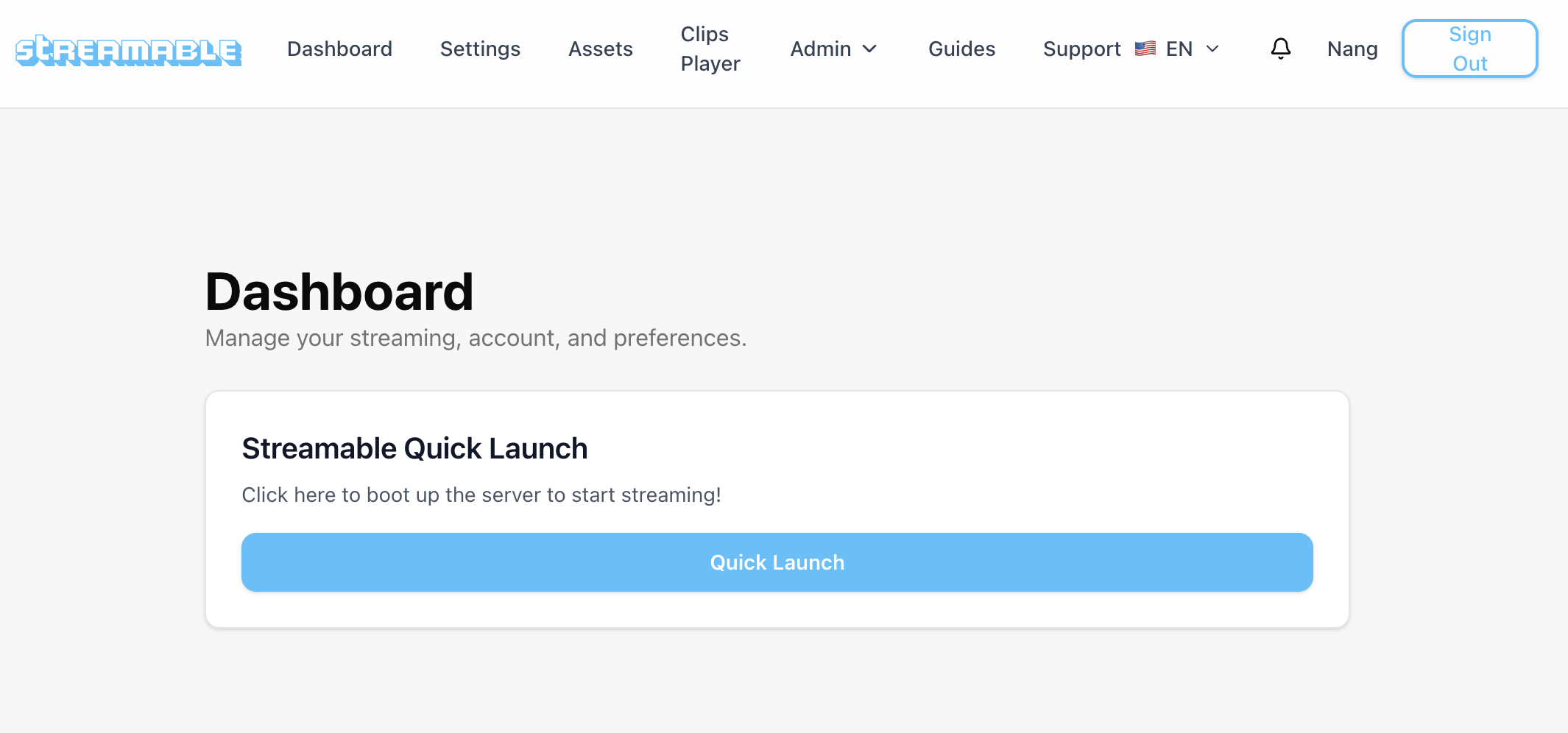
From your Streamable dashboard, click Quick Launch to boot up your streaming server.
Wait for the server to finish starting before moving on to the control panel.
Step 2:Turn on your stream from your ingest and switch to your ingest's scene
Start sending video from whichever ingest you use, such as OBS, IRL Pro, Moblin, LiveU, or another supported source.
Make sure Streamable is already receiving your feed so you can immediately test the overlays inside your live scene.
Step 3:Open Streamable Remote OBS from the Control Panel
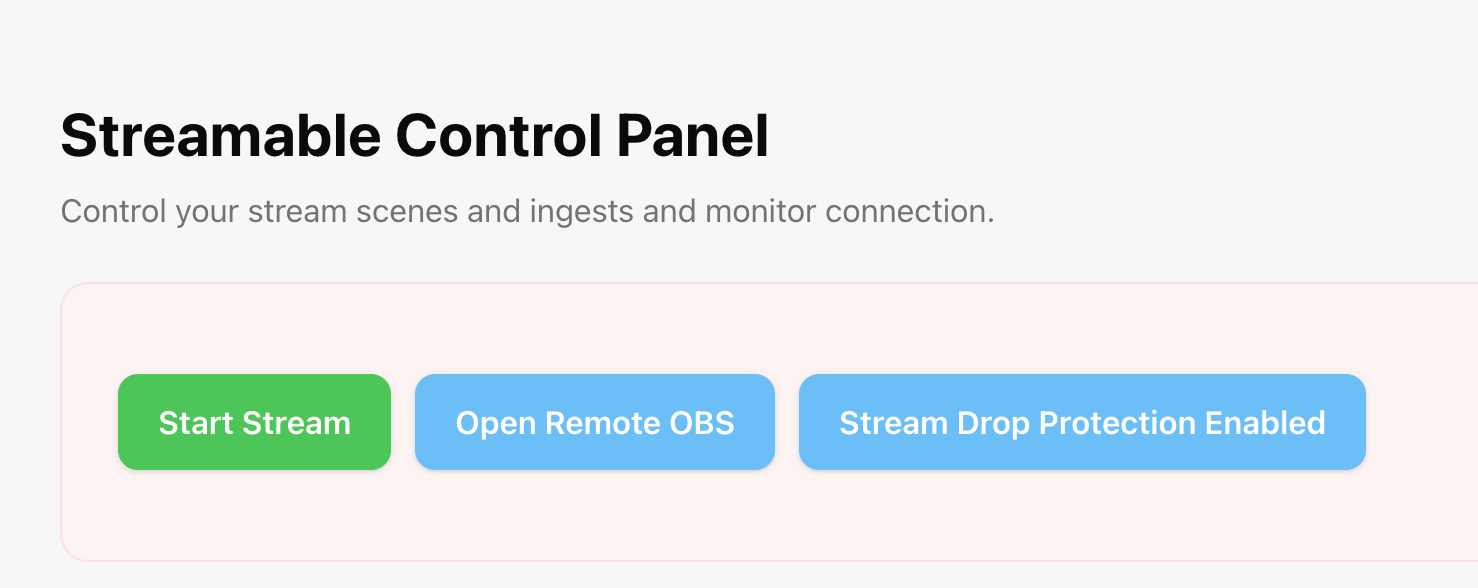
In Streamable, navigate to your Control Panel and click Open Remote OBS.
This opens the OBS interface where you can edit scenes and add browser-based overlays directly from the browser.
Step 4:Add a new Browser Source in your scene
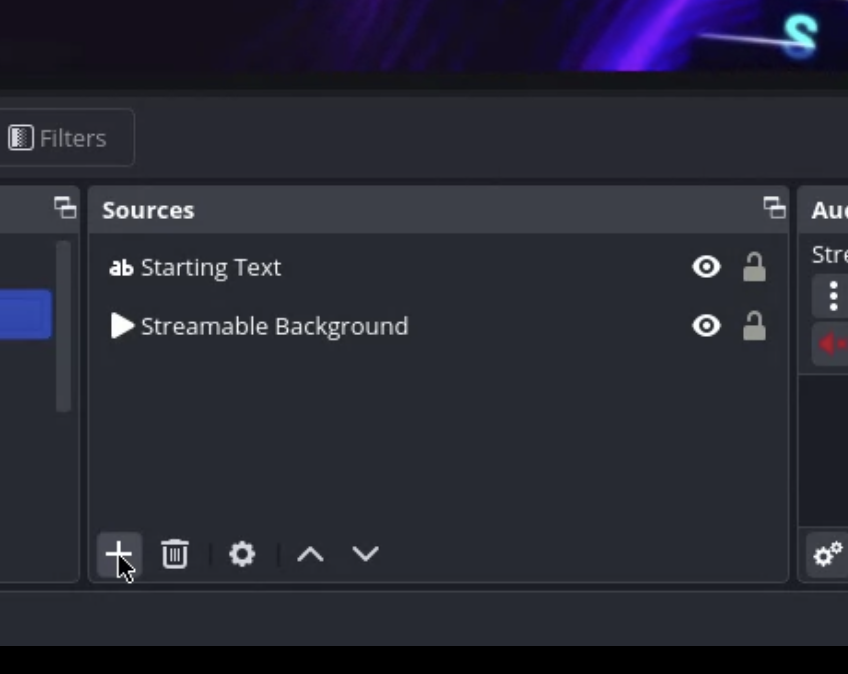
In Streamable Remote OBS, open the scene where you want chat and alerts to appear.
In the Sources panel, click the plus button and choose Browser Source.
Step 5:Create a Streamlabs account and open Chat Box
In another window, create a Streamlabs account at https://streamlabs.com/signup if you do not already have one.
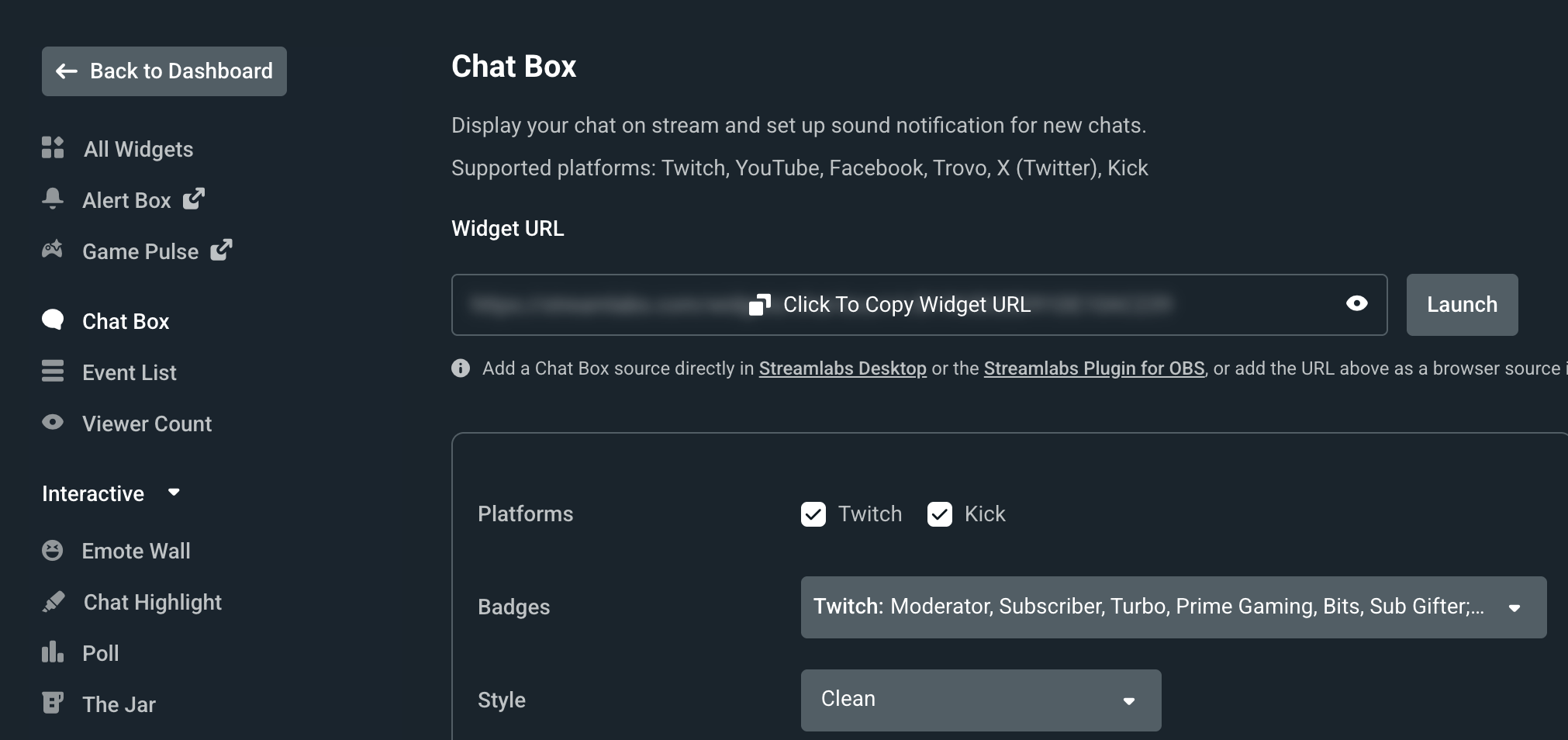
After signing in, open Chat Box from the left sidebar.
Streamlabs supports chat widgets for multiple platforms, including Twitch and Kick.
Step 6:Add your chat overlay
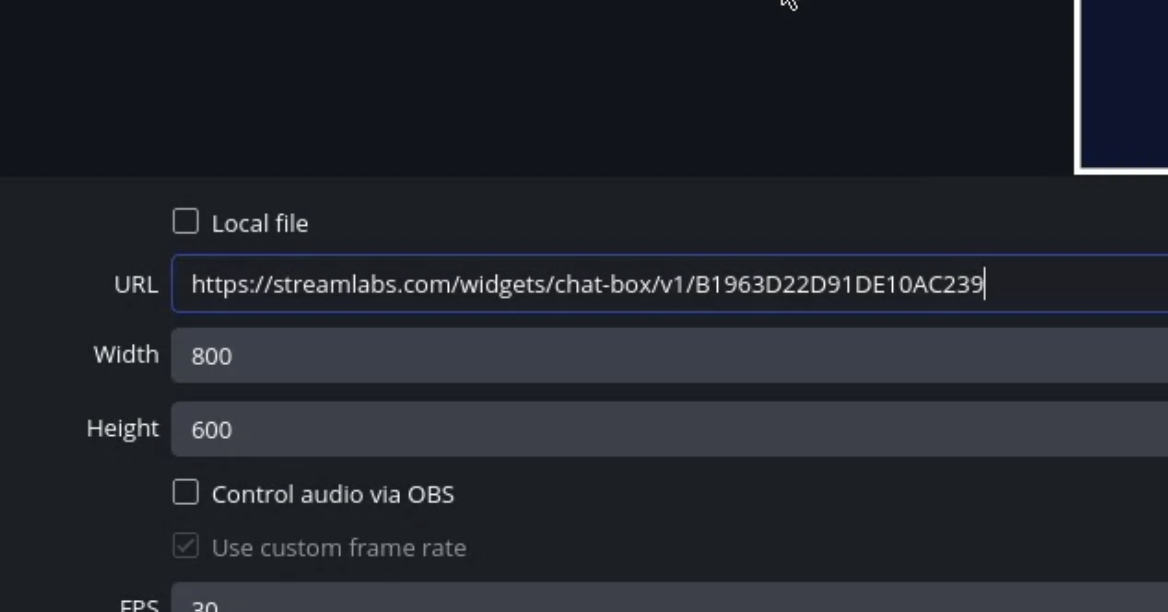
In Streamlabs, click to copy the Chat Box widget URL.
Go back to Streamable Remote OBS, paste that URL into the Browser Source URL field, and click OK.
Resize and position the Browser Source wherever you want chat to appear on stream.
Step 7:Add your alert overlay
In Streamlabs, open Alert Box from the left sidebar and click to copy the Alert Box widget URL.
In Streamable Remote OBS, add another Browser Source, paste the Alert Box URL, and click OK.
Position the alert source where you want follows, subs, donations, raids, or other alerts to pop up on stream.
Note: Keep your Browser Sources above your ingest layers so alerts will be visible.
Step 8:You're all set! Happy streaming!
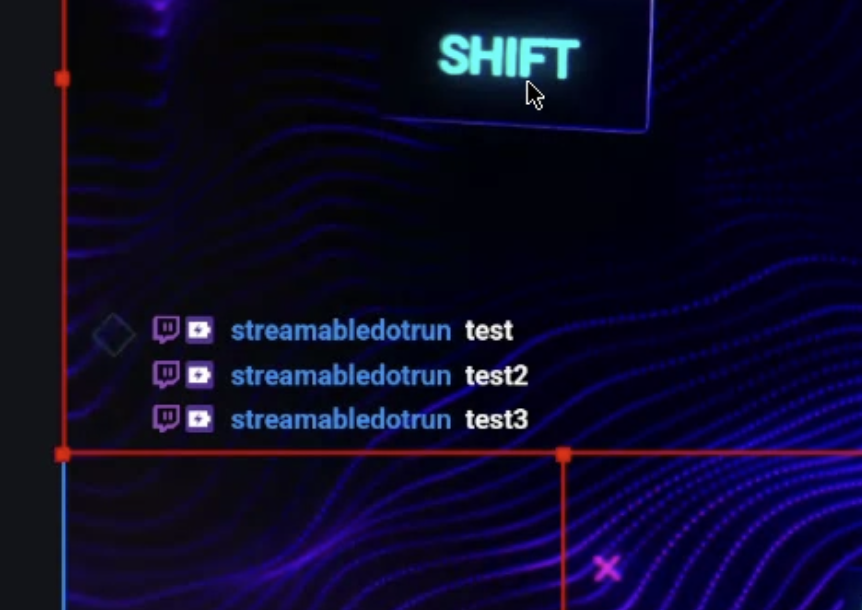
Your stream now has browser-based chat and alerts overlays running in Streamable Remote OBS.
Send a test chat message and a test alert before going fully live, then happy streaming!
Are you an IRL streamer? Give Streamable a try!
Let Streamable help you never IRL stream with issues again! Here's how we can help:
- Premium Cloud Streaming Servers
- 100% Stream Drop Protection with Clips Player
- Multiple Ingests, Switch scenes without pausing stream
- Collaborative Streaming / Share Ingests with Friend Requests
- Remote Control OBS
- DDoS protection
- much, much more!
Follow us on Social Media
Follow along for updates and tips:



Optional: Deep-Dive FAQ
Open only if you still need extra troubleshooting context.
Is this free for Streamable users?
Yes. This browser-source overlay setup is completely free for Streamable users.
Can I use this for Twitch and Kick?
Yes. This guide is intended for Twitch, Kick, and other platforms supported by the widget provider you use.
Do I need local desktop OBS for this?
No. You can do the full setup directly inside Streamable Remote OBS from your browser.
What if the Browser Source stays blank?
Re-copy the widget URL from Streamlabs, confirm you pasted the full URL into the Browser Source field, and make sure the source is added to the correct scene.