
Blog
How to Live Stream to OnlyFans from Streamable
Use Streamable as the cloud layer between your camera and OnlyFans so your live stream has cleaner RTMP setup, stronger reliability, and drop protection.
Written by Nang Ang
The short version
The best way to live stream to OnlyFans from Streamable is to treat OnlyFans as the viewer-facing destination and Streamable as the reliable cloud encoder in the middle. Your camera, desktop OBS, Moblin, IRL Pro, LiveU, SRT source, or RTMP source sends video into Streamable. Streamable then sends one stable output to OnlyFans.
This gives you a cleaner workflow than streaming directly from a phone or laptop because the connection OnlyFans sees comes from a cloud server, not from the weakest network in your setup. If your camera feed drops, Streamable can keep the broadcast alive with a fallback scene, BRB screen, or clips player instead of letting the platform stream hard-stop.
Why this matters for OnlyFans live streams
OnlyFans live streams are different from casual public streams. The audience may be paying, the show may be scheduled, and the live room can be part of a larger creator business. A dropped stream is not just a technical annoyance. It can interrupt the moment, create support messages, reduce tips, and force people to rejoin a new broadcast.
Direct streaming makes the device in your hand responsible for everything: camera capture, encoding, overlays, chat, network upload, and the final connection to OnlyFans. That is fine for a quick test, but it is fragile for longer streams, mobile streams, collabs, and paid live events.
Streamable separates the fragile part from the viewer-facing part. Your source only needs to reach Streamable. Streamable keeps the final output to OnlyFans running from the cloud.
How OnlyFans encoder streaming usually works
When an OnlyFans account supports encoder streaming, the workflow usually follows the same RTMP pattern used across live platforms: the platform gives you a server URL and a stream key, then your encoder sends video to that address. Mux's broadcast software documentation explains the same terms for RTMP: a server URL identifies the ingest server and a stream key authenticates the live stream.
OnlyFans can change its creator UI, live access, and stream settings over time, and access can vary by account. If your account does not show an RTMP, OBS, external encoder, server URL, or stream key option, you may need to use OnlyFans' native live tools until that account exposes encoder details.
Do not share your stream key. Treat it like a password. If you think it leaked, regenerate or replace it in OnlyFans before going live again.
What you need before going live
Before you set anything up, confirm the basics. This prevents the common mistake of troubleshooting Streamable when the real issue is that the OnlyFans live session is not ready yet.
- An OnlyFans creator account with live streaming access.
- An OnlyFans live session or live setup screen that exposes RTMP, RTMPS, server URL, stream URL, stream key, or external encoder details.
- A Streamable server that will run the cloud OBS session.
- One source feed into Streamable: desktop OBS, Moblin on iPhone, IRL Pro on Android, LiveU or DSLR, RTMP, SRT, or SRTLA.
- A fallback scene, BRB scene, or clips player for drop protection.
- A moderation and privacy plan, especially if the stream is paid, subscriber-only, or intended for a specific audience.
Step 1: Create the OnlyFans live session
Open OnlyFans on the account you plan to stream from and create or prepare the live session. Look for a live, go live, OBS, stream key, RTMP, RTMPS, or external encoder option. Creator-facing references commonly describe this as a flow where the creator opens the live tool, chooses desktop or encoder streaming, and copies the RTMP URL plus stream key.
Copy the server URL and stream key exactly. If OnlyFans gives you a secure RTMPS URL, use that. If it gives you RTMP only, use RTMP. If it gives you one combined URL that already contains the stream key, keep that whole URL together and do not split it unless OnlyFans specifically shows separate fields.
Set your title, access, pricing, and audience options in OnlyFans before you start sending video. Streamable can handle the video path, but OnlyFans still controls the room, audience, platform rules, and monetization settings.
Step 2: Add OnlyFans as a Streamable destination
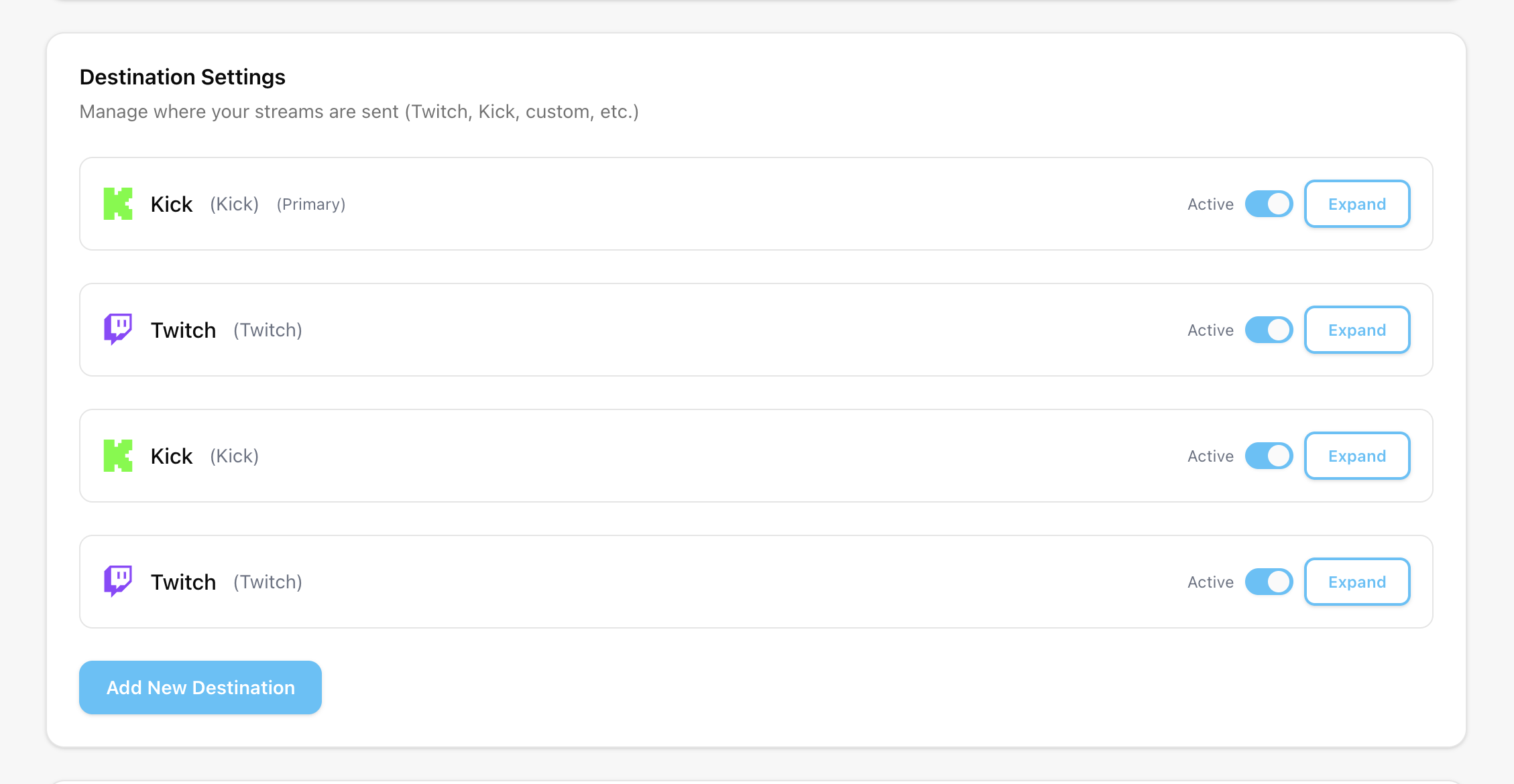
Go to https://streamable.run/destinations, click Add Destination, and choose OnlyFans.
Name the destination something obvious, such as OnlyFans Main, OnlyFans Friday Live, or OnlyFans Test. Paste the OnlyFans Stream URL into the Stream URL field. Paste the OnlyFans stream key into the Stream Key field if OnlyFans gives you a separate key.
If OnlyFans gives you one complete RTMP or RTMPS URL that already includes the stream key, paste the full value into Stream URL and leave Stream Key empty. The important thing is that Streamable sends the exact endpoint OnlyFans expects.
Create the destination, then keep it inactive until you are ready to test. This makes it easier to prepare multiple outputs without accidentally starting the live destination too early.
Step 3: Send your source into Streamable
Next, connect your camera or production source to Streamable. This part depends on how you stream.
For desktop OBS, send OBS into your Streamable ingest or use Streamable's OBS workflow. For Moblin on iPhone or IRL Pro on Android, send the mobile encoder to your Streamable ingest. For LiveU or a DSLR workflow, send the hardware encoder or local OBS output into Streamable. For advanced IRL, use SRT or SRTLA when your source supports it.
RTMP is common and easy. SRT can be better for unstable contribution paths because it is designed for point-to-point video over unreliable networks, and Mux's SRT guide describes SRT as a modern alternative to RTMP for this exact class of problem. The key idea is simple: use the most reliable protocol you can for the path from your camera to Streamable, then let Streamable handle the final destination output to OnlyFans.
Step 4: Start Streamable before going live on OnlyFans
Start your Streamable server and confirm your source appears in the cloud OBS preview. Check video, audio, overlays, browser sources, and any private information that might be visible on screen.
Start the OnlyFans destination from Streamable only when the cloud preview is clean. Then return to OnlyFans and wait for the platform preview or health indicator to show that video is arriving. Depending on the OnlyFans flow, you may still need to click Go Live inside OnlyFans after it detects the stream.
This order matters. Streamable first, destination second, OnlyFans confirmation third. It gives you a chance to catch wrong scenes, muted audio, old stream keys, or incorrect aspect ratio before viewers are in the room.
Recommended starting settings
OnlyFans does not publish a stable public encoder settings page that is easy to verify, so start with conservative RTMP settings that are widely compatible and adjust after testing. YouTube's public encoder guidance recommends H.264, AAC or MP3 audio, CBR bitrate encoding, and a 2-second keyframe frequency for RTMP/RTMPS streams. Mux's broadcast software guide also starts with H.264, AAC, 720p30 around 3500 Kbps, 1080p30 around 5000 Kbps, and a 2-second keyframe interval.
For OnlyFans, the practical starting point is usually 720p30 at 2500 to 4000 Kbps if reliability matters more than sharpness, or 1080p30 at 4000 to 6000 Kbps if your preview is stable and your content benefits from the extra detail. Avoid 4K unless you have confirmed OnlyFans accepts it for your account and the preview stays healthy.
Use CBR, H.264, AAC audio, 44.1 or 48 kHz audio sample rate, and a 2-second keyframe interval. If OnlyFans reports lag, buffering, or unstable preview, lower bitrate first before changing everything else.
- Reliable start: 720p, 30 fps, H.264, AAC, CBR, 2500 to 4000 Kbps, 2-second keyframe interval.
- Higher-quality start: 1080p, 30 fps, H.264, AAC, CBR, 4000 to 6000 Kbps, 2-second keyframe interval.
- Mobile or weak upload: 720p, 30 fps, H.264, AAC, CBR, 2000 to 3000 Kbps, with Streamable fallback ready.
- Vertical show: use a vertical canvas only if the OnlyFans live room and your creator workflow are built for vertical viewing.
Drop protection: the real reason to use Streamable
Drop protection is the reason Streamable is the best workflow for serious OnlyFans live streams. The platform should not be dependent on your phone signal, hotel Wi-Fi, laptop battery, local OBS crash, or a capture card glitch.
With Streamable, the cloud server stays connected to OnlyFans. If the source feed disappears, the cloud scene can switch to a BRB screen, offline card, waiting room, sponsor loop, or clips player. Viewers keep receiving a valid stream while you reconnect the source.
This is especially useful for mobile creators, IRL creators, collabs, long shows, and creators who do not want every local hiccup to become a public stream failure. It turns a hard failure into a recoverable interruption.
A strong OnlyFans scene setup
Build your Streamable cloud OBS scene collection before the first real show. You do not need a complicated broadcast package. You need predictable scenes that protect the live room when something goes wrong.
- Live scene: your main camera, audio, overlays, and any safe branding.
- BRB scene: a clean waiting screen for short interruptions.
- Fallback scene: the scene Streamable should show automatically if the source disconnects.
- Starting soon scene: useful if you want OnlyFans to receive the encoder before you bring viewers into the live room.
- Technical issue scene: a clear message for longer reconnections.
- Ending scene: a deliberate close instead of an abrupt stop.
Privacy and compliance checks
OnlyFans is a creator platform with strict account, age, and content obligations. Review the current OnlyFans Terms and platform rules before every new type of show: https://onlyfans.com/terms.
Do a visual privacy sweep before you start. Hide notifications. Remove addresses, legal names, private messages, billing screens, maps, and browser tabs. If you use a phone, enable Do Not Disturb and lock down notification previews.
Ofcom's 2025 enforcement action around OnlyFans age assurance is a reminder that age checks and regulatory obligations are a serious part of the platform context. Streamable improves your technical workflow, but it does not replace creator responsibility for platform rules, consent, rights, music licensing, or local law.
A reliable test plan
Do not make the first real broadcast your first test. OBS itself recommends testing before the first stream rather than jumping straight in, and the same applies here.
Create a short private or limited-audience test if your OnlyFans account supports it. Start Streamable, send your source into Streamable, start the OnlyFans destination, and confirm the OnlyFans preview receives clean audio and video. Then intentionally break the source feed for 20 to 30 seconds and confirm the Streamable fallback scene keeps the destination alive.
After that, reconnect the source and switch back to the live scene. If the stream recovers cleanly, you have tested the thing that matters most: not just whether the stream starts, but whether it survives a problem.
Troubleshooting
If OnlyFans does not show a preview, check the destination URL first. The URL should start with rtmp:// or rtmps:// unless OnlyFans explicitly gave you something else. Then check the stream key. A single extra space can break the connection.
If the stream starts and then buffers, lower bitrate. If audio is missing, confirm the source audio is present in Streamable's cloud OBS session before blaming the OnlyFans destination. If video is black, check the active scene, browser source permissions, capture card state, and whether the source feed is actually arriving at Streamable.
If OnlyFans says the stream ended, create a new live session and copy the new stream details. Some live platforms rotate keys or treat keys as session-specific. If a key worked yesterday and fails today, assume it may need to be refreshed.
- No OnlyFans encoder option: your account may not have RTMP/live encoder access yet.
- No preview: wrong URL, wrong key, expired key, destination not started, or Streamable server not running.
- Preview but no audio: wrong microphone, muted OBS track, audio source not routed, or browser source muted.
- Preview but unstable: bitrate too high, source upload unstable, weak Wi-Fi, or no headroom for retransmission.
- Stream stops after source drops: fallback scene or cloud output is not configured correctly.
- Wrong shape: your canvas is horizontal but the show is intended to be vertical, or the opposite.
Preflight checklist
- OnlyFans live session created and audience settings confirmed.
- OnlyFans stream URL and stream key copied into the Streamable OnlyFans destination.
- Streamable server started.
- Source feed visible in Streamable cloud OBS.
- Main scene, BRB scene, and fallback scene checked.
- Audio meter moving and monitor checked with headphones.
- Private notifications hidden.
- Bitrate set conservatively for the show.
- OnlyFans preview receiving video before the live room opens.
- Someone is watching chat or moderation if the show needs it.
When not to use this workflow
Do not use this workflow if your OnlyFans account does not expose live encoder details and you cannot create a destination URL or stream key. Streamable needs a destination endpoint to send video to.
Do not use it as a way to bypass OnlyFans rules, age requirements, content policies, rights restrictions, or access limits. Streamable is a production and reliability layer, not a policy bypass.
Do not run a paid or subscriber-only show without testing fallback behavior. The whole point of using Streamable is that a predictable failure mode is better than a surprise drop.
Sources researched
This post is based on current public references for RTMP, RTMPS, OBS testing, SRT contribution, and creator-facing OnlyFans live setup. Public official OnlyFans encoder documentation is sparse, so the OnlyFans UI steps are written conditionally and should be checked against the current creator dashboard.
- Mux broadcast software docs for RTMP server URL, stream key, H.264/AAC, bitrate, and keyframe terminology: https://www.mux.com/docs/guides/configure-broadcast-software.
- YouTube's public encoder settings for RTMP/RTMPS, CBR, H.264, AAC/MP3, and 2-second keyframes: https://support.google.com/youtube/answer/2853702?hl=en.
- Mux SRT docs for using SRT as a more reliable contribution protocol over unreliable networks: https://www.mux.com/docs/guides/use-srt-to-live-stream.
- OBS quick start guide for source setup, audio checks, output checks, and testing before a real stream: https://obsproject.com/kb/quick-start-guide.
- Creator-facing OnlyFans streaming reference for the common Go Live, RTMP URL, and stream key flow: https://www.enforcity.com/onlyfans-success/how-to-stream-on-onlyfans.
- Ofcom's 2025 OnlyFans age assurance enforcement note for platform compliance context: https://www.ofcom.org.uk/online-safety/protecting-children/ofcom-fines-provider-of-onlyfans-1.05-million.
Are you an IRL streamer? Give Streamable a try!
Let Streamable help you never IRL stream with issues again! Here's how we can help:
- Premium Cloud Streaming Servers
- 100% Stream Drop Protection with Clips Player
- Multiple Ingests, Switch scenes without pausing stream
- Collaborative Streaming / Share Ingests with Friend Requests
- Remote Control OBS
- DDoS protection
- much, much more!
Follow us on Social Media
Follow along for updates and tips:



Optional: Deep-Dive FAQ
Open only if you still need extra troubleshooting context.
Can I stream to OnlyFans from Streamable?
Yes, if your OnlyFans account provides encoder details such as an RTMP or RTMPS stream URL and stream key. Add those details as an OnlyFans destination in Streamable, send your source into Streamable, then start the destination.
Is Streamable better than streaming directly to OnlyFans?
For reliability-focused creators, yes. Streaming directly makes your phone or local computer responsible for the platform connection. Streamable puts a cloud OBS layer in the middle, so the OnlyFans output can stay live even if your source feed drops.
What is drop protection for OnlyFans live streams?
Drop protection means Streamable keeps sending a valid scene to OnlyFans when your camera, phone, local OBS, or mobile signal disconnects. Viewers see a fallback or BRB scene instead of the stream ending immediately.
What bitrate should I use for OnlyFans?
Start conservatively. Try 720p30 at 2500 to 4000 Kbps for reliability, or 1080p30 at 4000 to 6000 Kbps if your preview is stable. Use H.264, AAC, CBR, and a 2-second keyframe interval.
Can I use OBS with OnlyFans and Streamable?
Yes. You can use local OBS as the source into Streamable, or use Streamable's cloud OBS as the production layer that sends the final output to OnlyFans.
What if OnlyFans gives me one combined RTMP URL?
Paste the complete URL into Streamable's Stream URL field and leave Stream Key empty. If OnlyFans gives separate URL and key fields, paste them separately.
Can I multistream OnlyFans with Twitch, Kick, or YouTube?
Streamable can manage multiple destinations technically, but you should check the current rules and account obligations for every platform before multistreaming paid, subscriber-only, or restricted content.