
Blog
How to Go Live on YouTube
Connect YouTube Live to Streamable, start your stream, and go live from your computer.
Written by Brenton Nguyen
Step 1:Sign in to YouTube
On your computer, sign in to the YouTube account you want to stream from.
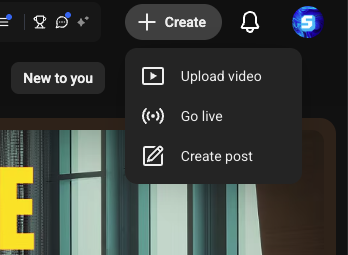
Step 2:Open YouTube Studio Live
Click "Create", then choose "Go live."
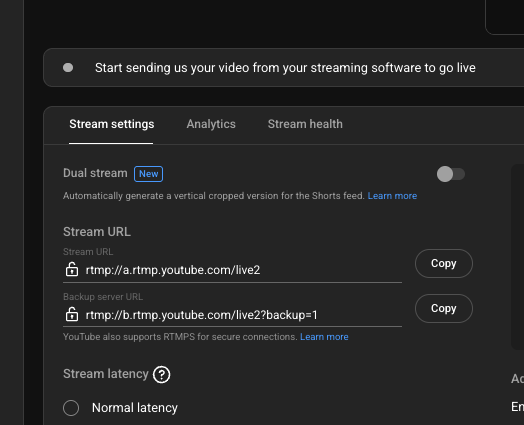
Step 3:Copy the Stream URL
Find the Stream URL in the lower-left area of YouTube Studio, then copy it.
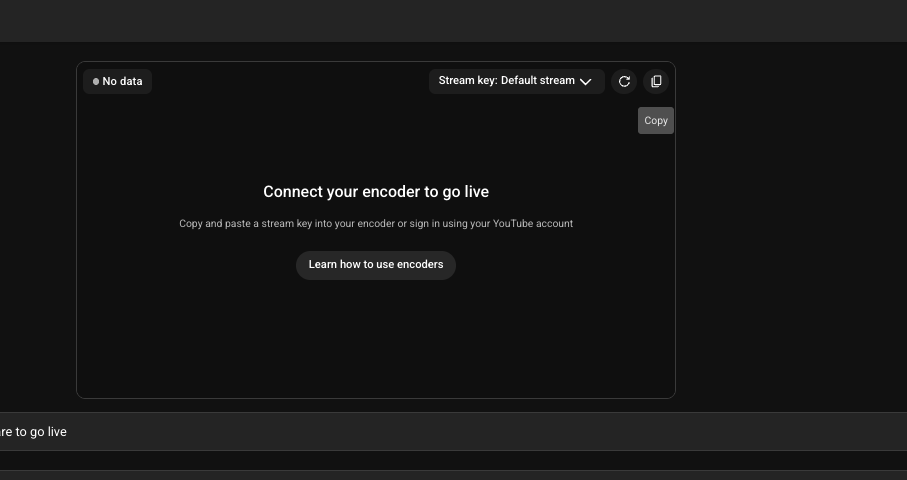
Step 4:Copy the Stream Key
Find the Stream key in the center of YouTube Studio. Use the copy button near the preview.
Step 5:Create a YouTube Destination in Streamable
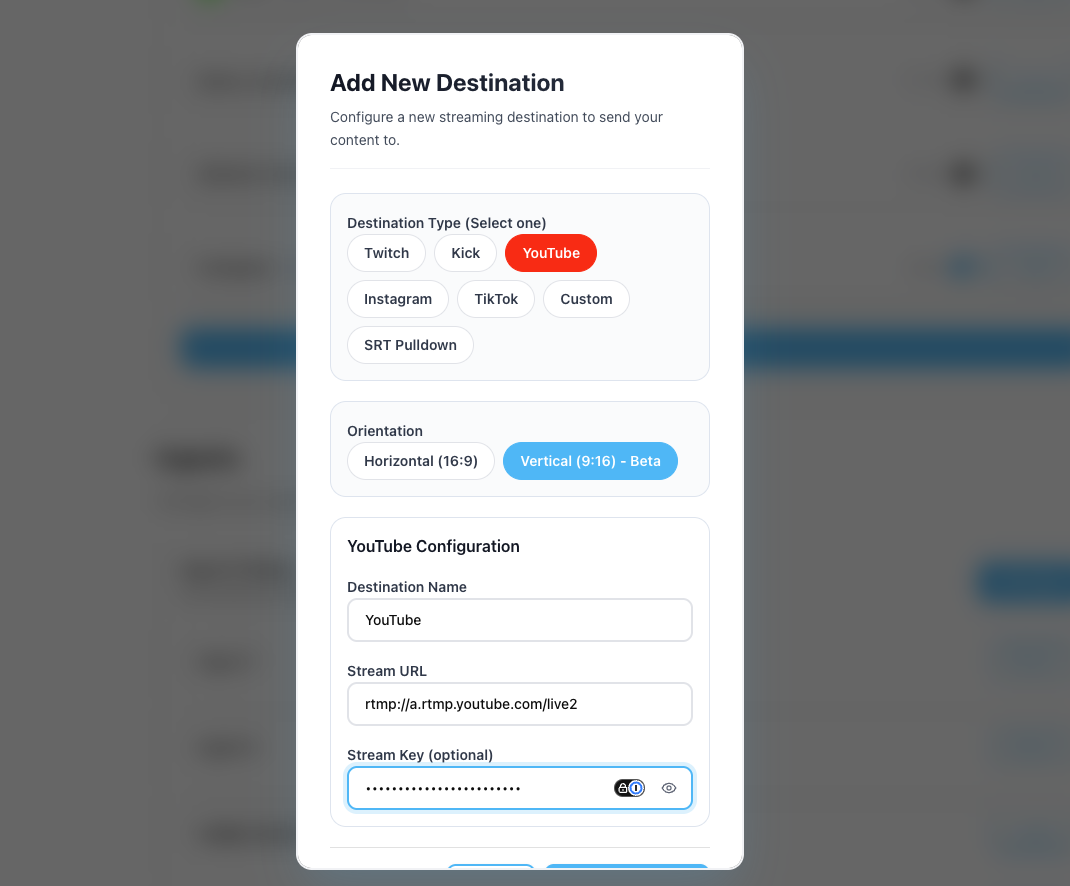
In Streamable, go to https://streamable.run/destinations and click "Add Destination > YouTube."
Paste the Stream URL and Stream key, then click "Create Destination."
Step 6:Start Streaming from Streamable
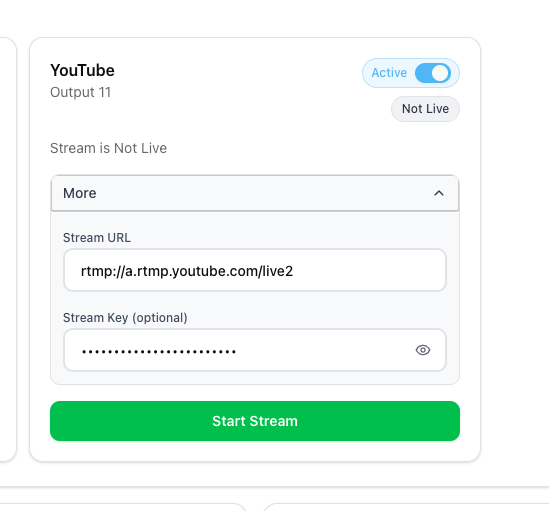
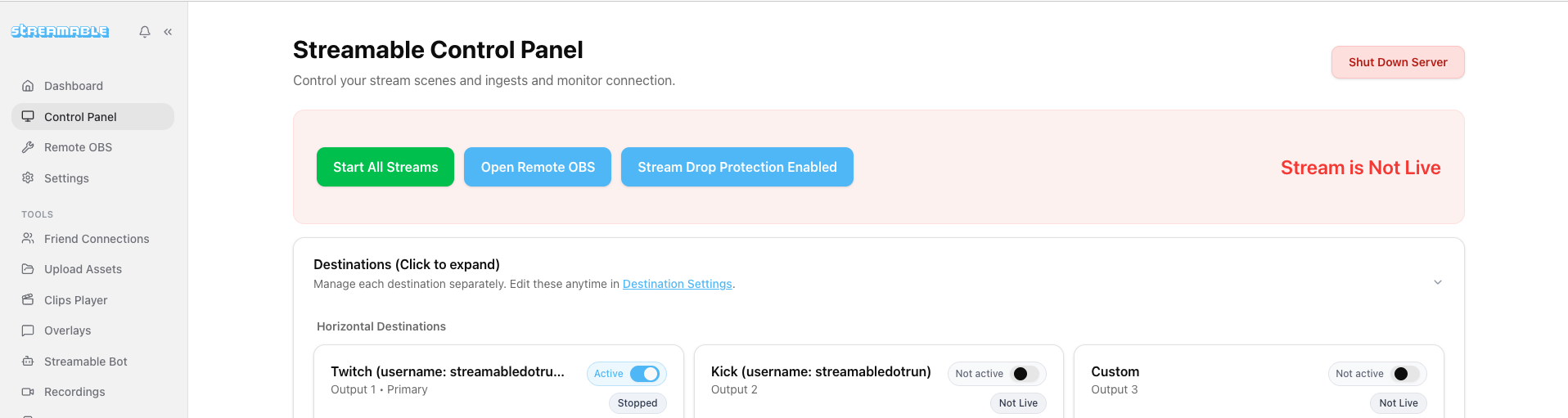
Start your Streamable server, then click "Start Stream."
YouTube can change the Stream key for a live session. If it changes, update it from the Streamable Dashboard before you start.
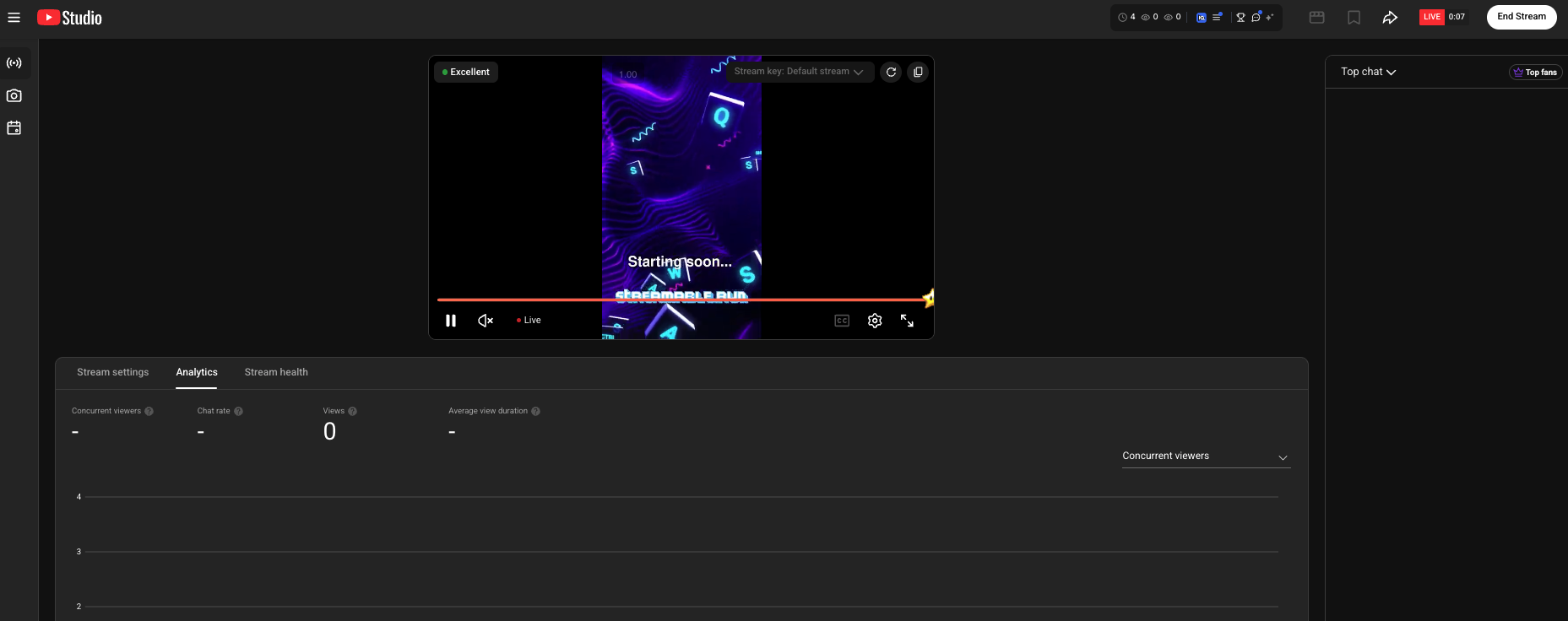
Step 7:You're all set - Happy streaming!
Return to YouTube Studio. YouTube automatically starts your livestream. Happy streaming!
Follow us on Social Media
Follow along for updates and tips:



Optional: Deep-Dive FAQ
Open only if you still need extra troubleshooting context.
Why should I check my YouTube Stream key?
YouTube can provide a different Stream key for a live session. Confirm the key in Streamable before starting your stream.
Do I need to click Go Live in YouTube Studio?
For this setup, YouTube starts the livestream automatically once it receives the stream and the preview is ready.