Guide
How to use Android phone as an Input for Live Streaming to Twitch, Kick, etc.
Follow these steps to connect IRL Pro to your ingest and start streaming live from your mobile device.
Hey there! Streamable enables the most popular streamers to IRL stream without issues. Features include Premium Cloud Streaming Servers, 100% Stream Drop Protection, Clips Players, Remote-Control OBS, Multiple Ingests, Collaborative Streaming, DDoS protection, and much more! If you're a streamer, let us help you out!
Step 1:Install IRL Pro from the Play Store
Install IRL Pro from the Play Store on your Android phone.
IRL Pro is one of the most popular apps for streaming from an Android phone.
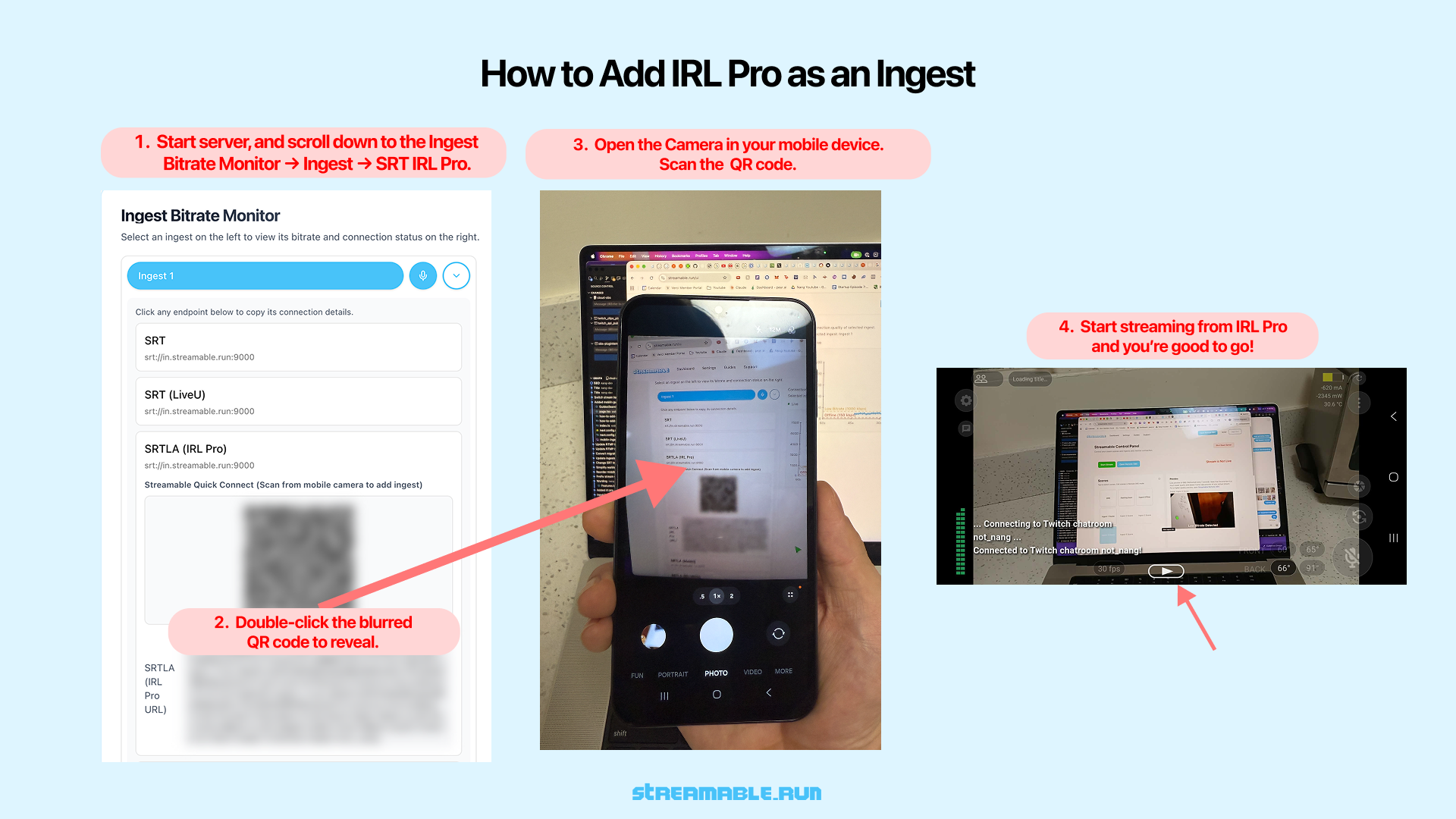
Step 2:Start Your Streamable Server
Start your server at https://streamable.run/dashboard.
Open the control panel and scroll down to the Ingest Bitrate Monitor section.
Select your ingest, then navigate to Ingest > SRT IRL Pro.
Step 3:Reveal the IRL Pro QR Code
In the Ingest Bitrate Monitor, select the ingest you want to use.
Under the SRTLA (IRL Pro) - Android section, double-click the blurred QR code to reveal it.
This QR code contains all required connection details for IRL Pro, including server, port, and stream ID.
Step 4:Scan the QR Code with Your Phone
Open the Camera app on your mobile device.
Scan the revealed QR code displayed on your screen.
Your phone will automatically open IRL Pro and add it as a choice for Destination.
Step 5:Select Streamable Ingest as the active Destination in IRL Pro Settings
In IRL Pro Settings, select your Streamable ingest as the active Destination.
Step 6:Start Streaming from IRL Pro
Confirm the imported stream settings inside IRL Pro.
Tap "Start Streaming" to begin sending video to Streamable.
Step 7:Happy Streaming!
Start your stream in IRL Pro. In Streamable Control Panel, select the ingest and preview the Android feed in Ingest Bitrate Monitor. Press "Start Stream" in Streamable Control Panel and you're live!
Are you an IRL streamer? Give Streamable a try!
Let Streamable help you never IRL stream with issues again! Here's how we can help:
- Premium Cloud Streaming Servers
- 100% Stream Drop Protection with Clips Player
- Multiple Ingests, Switch scenes without pausing stream
- Collaborative Streaming / Share Ingests with Friend Requests
- Remote Control OBS
- DDoS protection
- much, much more!
Follow us on Social Media
Follow along for updates and tips:



Optional: Deep-Dive FAQ
Open only if you still need extra troubleshooting context.
What does this guide help with?
Follow these steps to connect IRL Pro to your ingest and start streaming live from your mobile device.
How long should this setup take?
Most users can complete this in about 3 to 5 minutes, depending on their current setup.
Where should I start first?
Start with Step 1: Install IRL Pro from the Play Store. Then continue in order and apply each setting before moving on.
What if the issue still is not resolved?
Re-check each setting in this guide, restart OBS, and test again. If needed, contact Streamable support or join Discord for help with your exact setup.